What Pixel Screen Flickering Can Look Like
Screen flickering does not always look the same. You might notice:
- Brief flashing when unlocking the phone
- Brightness pulsing up and down
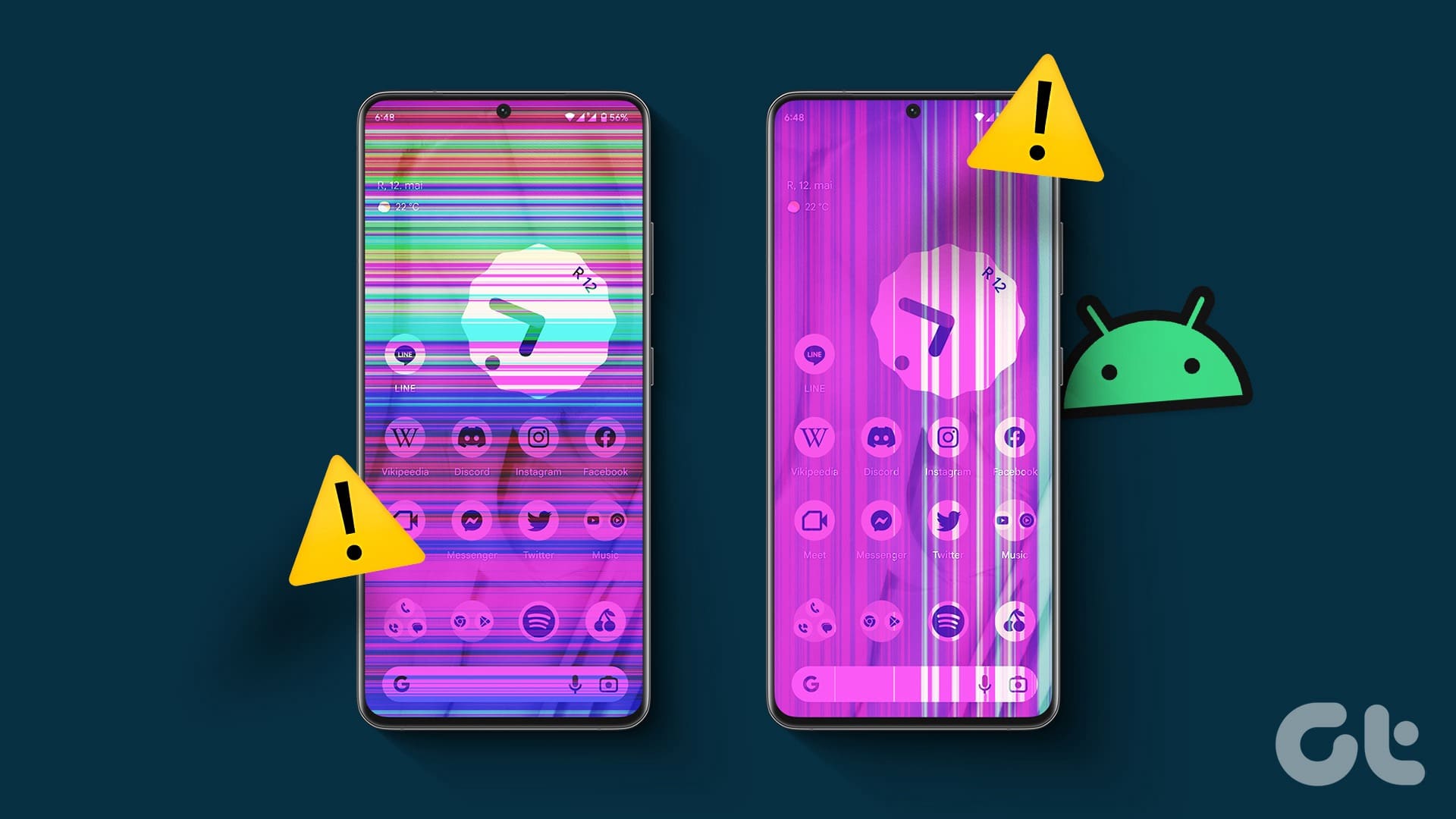
- Green tint or colour shifting
- Horizontal or vertical lines
- Flickering in dark mode or at low brightness
- A display that looks unstable even after restarting
Google specifically lists flickering, green tint, and horizontal or vertical lines as related display symptoms to troubleshoot first and repair if they continue.
Common Causes of Google Pixel Screen Flickering
1. Software or System Glitches
A temporary software problem can sometimes cause the display to behave oddly. Google's first recommended step is to check for a system update when a Pixel screen flickers or shows tint or lines.
2. App-Related Issues
If the flicker only happens in one app, the issue may be app-specific rather than a failing screen. Treat problems limited to a specific app differently from broader hardware symptoms.
3. Display Hardware Damage
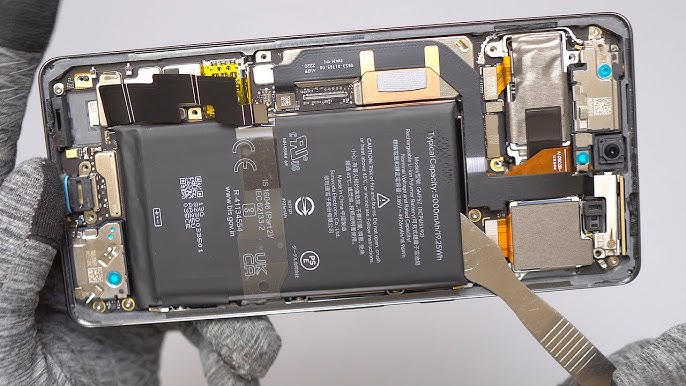
If the flicker continues after updates and restarts, the display panel or internal connection may be damaged. Ongoing flicker or lines often indicate a hardware issue.
4. Drop or Impact Damage
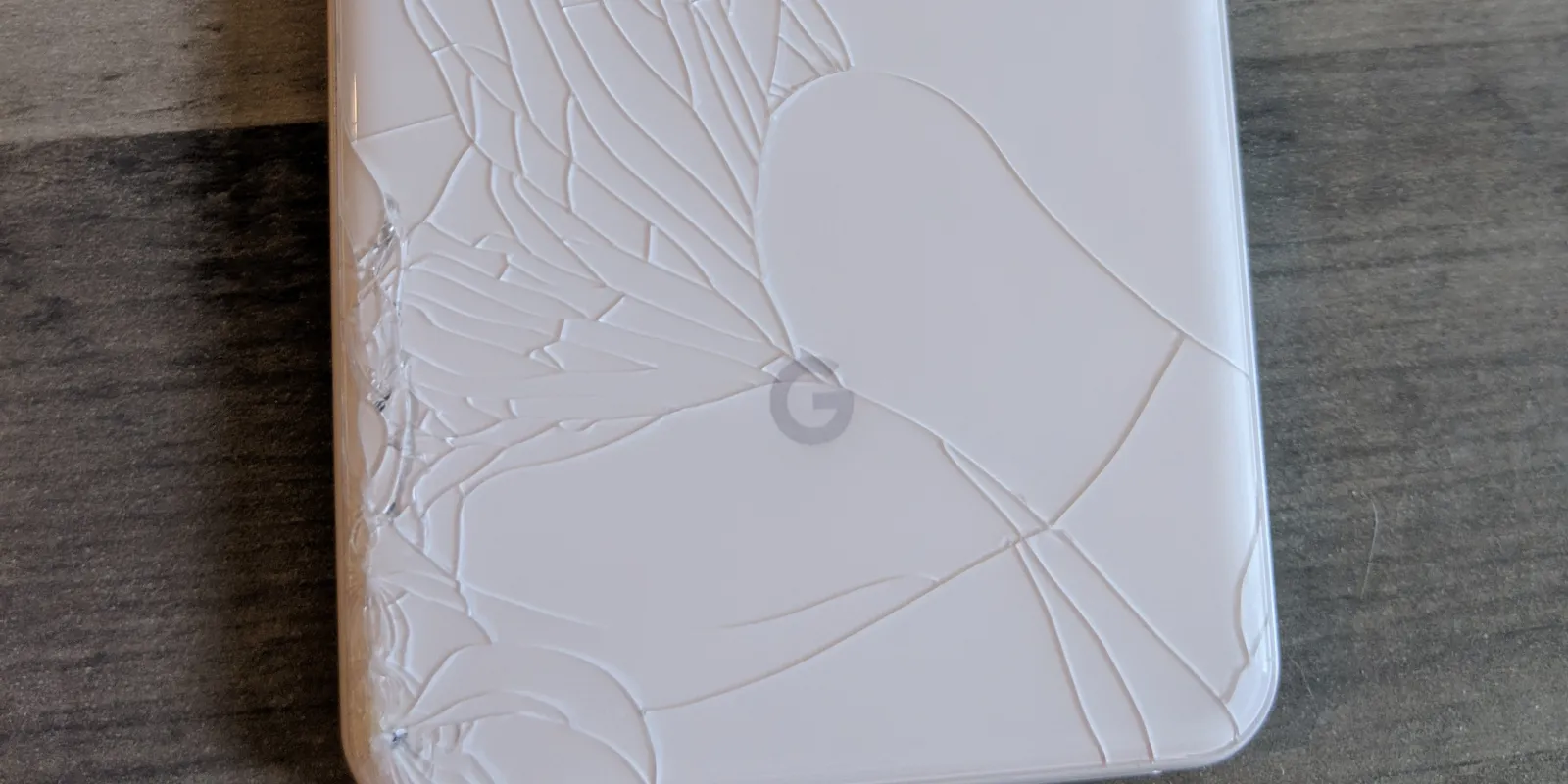
A Pixel that has been dropped may start flickering even if the outer glass is not badly cracked. Internal display damage often shows up later as flashing, coloured lines, or unstable brightness.
5. Model-Specific Display Faults
Some models have known display-related support programs. Google has extended repair programs for certain Pixel 8 devices and select Pixel 9 Pro/XL devices experiencing vertical lines or flicker.
What to Try First
Before assuming the screen needs replacing, try these steps:
- Check for Updates: Install the latest Android system update. This is Google's first recommendation for Pixel flicker and display-line issues.
- Restart the Phone: A simple restart can clear temporary display glitches.
- App Test: If it only happens in one app, update or reinstall that specific app.
- Remove Accessories: Take off your case or screen protector, as these can sometimes interfere with touch-related display behaviors.
- Back Up Data: If the display is worsening, back up your important information before the issue becomes harder to manage.
Signs It Is Probably a Hardware Problem
Your Pixel is more likely to need repair if:
- The flicker happens across the whole system, not just one app
- Updates do not fix it
- The screen also shows green tint or lines
- Touch starts failing along with the flicker
- The issue started after a drop
Devices with display problems like flickering, lines, or black spots may qualify for warranty support if there is no physical or liquid damage.
When to Book a Repair
You should arrange a repair sooner rather than later if the flickering worsens, lines or dark patches appear, or if restarting and updating have not helped. For some Pixel 8 and 9 Pro series devices, Google offers extended display repair support, though cracked glass can sometimes affect eligibility.
Final Thoughts
A flickering Google Pixel screen can be caused by software issues, app conflicts, impact damage, or a failing display panel. The safest approach is to check for updates, restart the phone, test whether the problem is app-specific, and act quickly if the flicker continues.
Book a Brisbane repair in under 60 seconds.
Same-day service, genuine-grade parts, 12-month warranty. Walk-ins welcome at Paddington · Coorparoo · Calamvale.
Book a repair