I can tell you exactly what causes these lines and walk you through how to test your machine without burying you in confusing tech jargon. Let's figure out what is going on with your screen.
The Usual Suspects: Why the Lines Appear
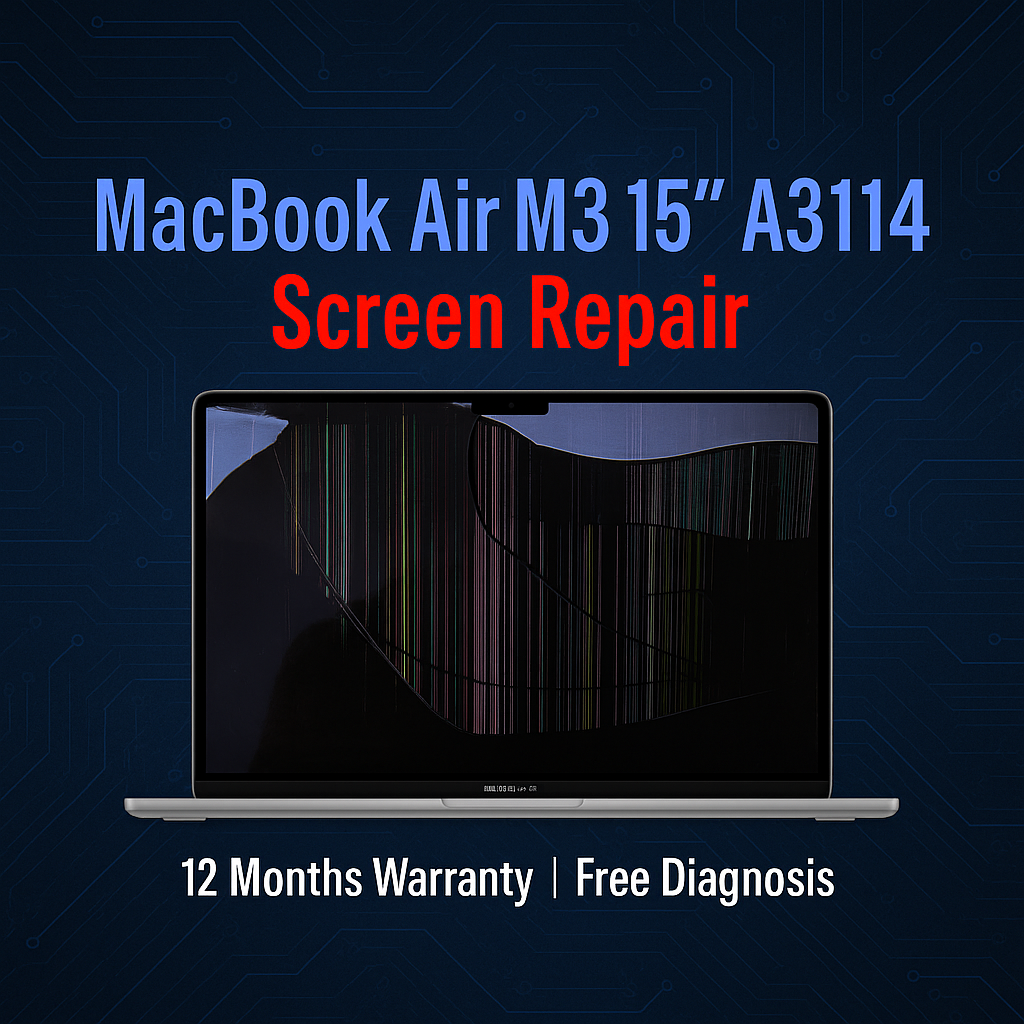
Those colored, black, or white stripes usually boil down to one of two categories: a physical hardware failure or a software glitch. Here are the most common culprits.
1. The Ribbon Cable (The "Flexgate" Issue)
Your MacBook's screen connects to the main motherboard inside via a delicate, flexible ribbon cable. Every time you open and close your laptop lid, that cable bends. Over time, that constant bending can wear the cable out or cause microscopic tears. When the connection gets loose or damaged, the video signal scrambles, resulting in vertical lines or a weird spotlight effect at the bottom of the screen.
2. Physical Damage
Sometimes the truth hurts. Even if the exterior glass looks perfectly fine, the LCD panel underneath is incredibly fragile. A minor drop, accidentally closing the laptop with a pen on the keyboard, or even pressing too hard on the back of the lid inside a crowded backpack can crack the internal display matrix.
3. T-CON Board Failure
The Timing Controller (T-CON) board is a tiny component that translates the video signal from your computer's brain into the actual images you see. If this board starts failing, short-circuits, or overheats, it forgets how to draw the picture correctly, leading to horizontal or vertical banding.
4. Overheating
Extreme heat can temporarily mess with your Mac's Graphics Processing Unit (GPU). If you have been pushing your laptop to its absolute limits—like rendering heavy video files or gaming while resting the computer on a bed where blankets block the cooling vents—the internal temperature can skyrocket and cause visual artifacts.
5. Software and Driver Glitches
Good news! It is not always broken hardware. Sometimes, an outdated macOS version, a buggy graphics driver, or a background software conflict can simply cause the operating system to render the display incorrectly.
How to Test It (Before Paying for a Repair)
Before you assume the worst and book a Genius Bar appointment, try these troubleshooting steps. They will help you figure out if you just need a quick system refresh or if you actually need a physical repair.
- The Classic Reboot: Turn your Mac completely off and turn it back on again. This resets the graphics drivers. If the lines disappear, you just experienced a software hiccup.
- Boot into Safe Mode: Turn off your Mac, turn it back on, and immediately press and hold the Shift key until the login window appears. Safe Mode only loads essential software. If the lines are gone in Safe Mode, a third-party app or a bad software update is likely causing the mess.
- Update macOS: Open your system settings and check for a software update. Apple frequently patches display bugs, so ensuring you are running the latest version is a quick way to rule out known glitches.
- Let It Cool Down: If your Mac is running hot to the touch, shut it down completely, move it to a hard, flat surface like a desk, and let it cool off for an hour before turning it back on.
The Ultimate Diagnostic: The External Monitor Test
This is the most important trick. Plug your MacBook into a TV or an external computer monitor. If the lines appear on your MacBook but not on the TV, your MacBook's physical screen is broken. If the lines show up on both screens, you are dealing with a deeper graphics card issue or a major software bug.
The Final Verdict
If you have tried the steps above, connected your laptop to a TV, and those lines are still stubbornly sitting on your built-in screen, you are almost certainly dealing with a hardware issue.
Because modern MacBooks are tightly glued and screwed together, a screen replacement isn't very DIY-friendly. Your absolute best move right now is to back up your data immediately (just in case the screen goes completely black) and take it to a professional repair service to get a quote.
If you are looking for reliable diagnostics and solutions, check out our MacBook Repair services to learn how we can help get your display looking crystal clear again.
Book a Brisbane repair in under 60 seconds.
Same-day service, genuine-grade parts, 12-month warranty. Walk-ins welcome at Paddington · Coorparoo · Calamvale.
Book a repair